This page contains a manual for setting up the free Comodo Internet Security (download: www.personalfirewall.comodo.com, the 32-bits version is suitable for most Windows installations). This internet security suite (free, even for commercial use!) contains a complete, professional firewall, suitable for both Windows XP and Windows Vista. Besides the firewall, Comodo Internet Security Suite contains free virusscan software, Defense+ (a feature which verifies the running processes to prevent undesired changes to the system from happening) and sandbox technology (a virtual environment to prevent programs making essential changes to the system). Thanks to these new features, there is less chance virusses and malware are able to upset the system. Comodo was already known as one of the best firewalls, but in combination with the virusscan software ande Defense+ it keeps the competition ahead! The only disadvantage: for now there is only an English version available.
Firewall software verifies the outgoing and incoming traffic between the computer and the internet/network traffic and blocks all undesired traffic. By doing this, the firewall is not visible for other computers in the network or the internet, which makes it difficult for unauthorized persons to gain access to personal files. A firewall prevents also that installed malware gains access to the internet (without a confirmation by the user) which prevents the malware from sending personal data towards the internet. If the virus scan software has missed a virus, the firewall can prevent further damage. To summarize: the firewall makes the internet connection a lot safer!
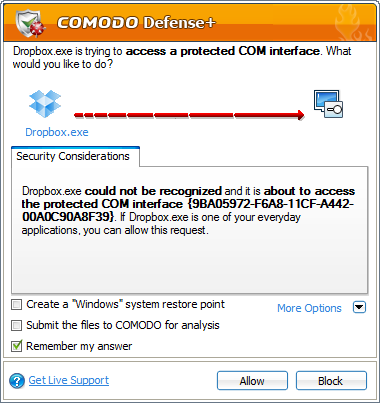
The Comodo firewall verifies the traffic over the internet connection, the virusscan software for virusses while Defense+ verifies the activities of the executable files. For both the firewall and Defense+, Comodo uses pop-ups to inform the user and to ask for permission, with these pop-ups, the user can accept or deny the detected activity. When the option Remember my answer has been activated, the accepted (or denied) activity is added to the database of safe (unsafe) applications and activities (the next time the same activity occurs, there will be no pop-up). In the beginning, Comodo has to 'learn' a lot, which will result in many pop-ups in the first days. Fortunately, Comodo has an option to mark the already installed applications as safe, which safes a lot of time. This option can be used safely after a new Windows installation.
For the less experienced users, it is sometimes hard to interpret the seriousness of the pop-up warnings. In those cases, Comodo can be set on a lower security level which suppresses the pop-ups for the relatively safe activities. This is possible because Comodo has a frequently updated white list of over 1 million known safe programs. Besides the white list, Comodo analyses the behavior of the running applications which results in an advise towards the user what to do.
ATTENTION: If the Comodo virusscan software will be installed as well, currently installed virusscan software must be uninstalled first as well. Uninstalling the current firewall and/or virusscan software can be done by the sub Software (XP)/Programs and Features (Vista/7) in the Control panel.
|
|
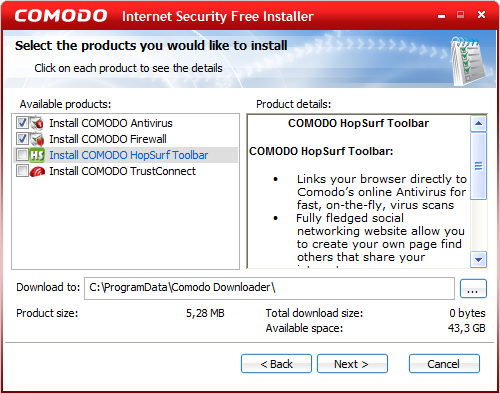
The shown options during the setup procedure of Comodo Internet Security might not be that clear for an inexperienced user. If you don't understand the questions, it is safe to click Next for every question because the default settings are fine. For fine-tuning purposes it is wise to verify each step and if needed to deviate from the default settings to prevent changing the startpage of the browser and the installing of an irritatitng toolbar. First select the setup interface language, accept the licence agreement and skip the registration procedure when the e-mail from Comodo is not wanted.
The user is recommended to install the Comodo Firewall, the Comodo Antivirus and the Comodo HopSurf Toolbar. The advantages of the Comodo HopSurf Toolbar are questionable, therefore this option can be disabled. Deactivate the option Comodo Antivirus as well when another antivirus software is already used (or deinstall it first) to prevent booting problems. If Comodo Antivirus is disabled it can only be enabled by reinstalling Comodo!
DISBABLE VIRUSSCAN WHEN OTHER VIRUSSCAN SOFTWARE IS INSTALLEDIf the option to install the Comodo Antivirus is disabled, in the following window the user is asked to choose between the basic installation (Firewall Only), the advanced version (Firewall with Optimum Proactive Defense) or the option with maximum use of the options Defence+ has got to offer (Firewall with Maximum Proactive Defence+). The basic Firewall notably limits the number of pop-ups because Comodo will only check the internet activities, which is safe enough for most users. For monitoring the activities of the installed application, it is necessary to select the option Firewall with Optimum Proactive Defense or Firewall with Maximum Proactive Defence+. Be aware that choosing for these options will result in notable more pop-ups to be answered! In the next steps of this manual describes the settings for the Firewall with Optimum Proactive Defense. |
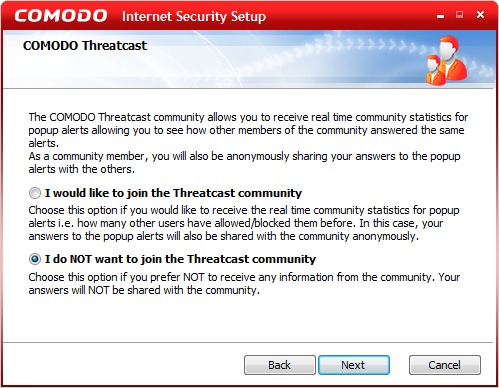
The next window asks the user to join the Threatcast community. This option gives statistics about the decisions other users have made on a pop-up asking to allow or to block in a similar situation. This can be useful in case you don't know if a program is safe or not. In return, your answer will be shared (anonymously) with the other users. Although this feature could be useful, my advise would be to disable it.
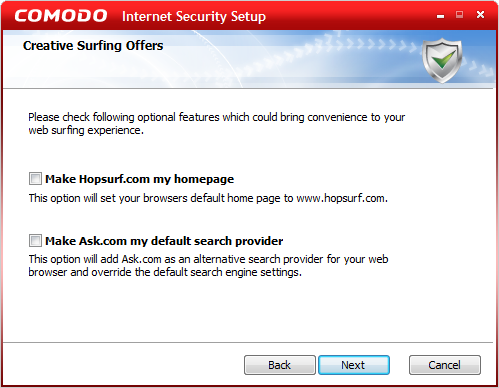
The next window asks the user to use the Comodo Secure DNS Servers instead of the DNS server of your own internet provider. Activate the option to use the Comodo server if you don't want to use the DNS-server of your internet provider but to prevent connection problems it is probably wise to keep using the DNS server of your internet provider. The next page asks the user to change the startpage to Hopsurf.com and to change teh default search engine to Ask.com. These features are not needed and it is probably better to disable them.
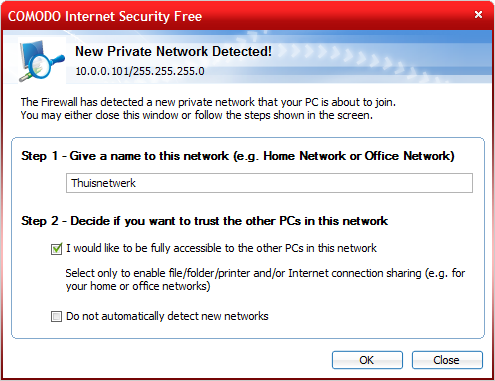
After the computer has restarted and Windows is reloaded, Comodo starts automatically. The first time Comodo runs, a pop-up is shown the network where the computer is connected to. If you would like to change the given name for the network, it is the only point in time to do it. Change the already shown name at Step 1 to the desired network name (e.g. Network at home). If the network name has been set, don't change it any ware because it will result in problems! Only activate the option I would like to be fully accessible to the other PCs in this network when files and/or printer on the computers has to be shared with other users in the network.
After installation, the main Comodo window is available by double clicking the Comodo Internet Security icon in the system tray. The icon is recognized by the white colored shield with green and red arrows indicating the down and upload activities. The buttons at the top of this window shows successively a summary, the anitvirus settings, the firewall settings, the Defense+ settings and the other settings (More). The user interface language can be changed by the sub More, option Settings, tab Language followeb by restarting the computer.
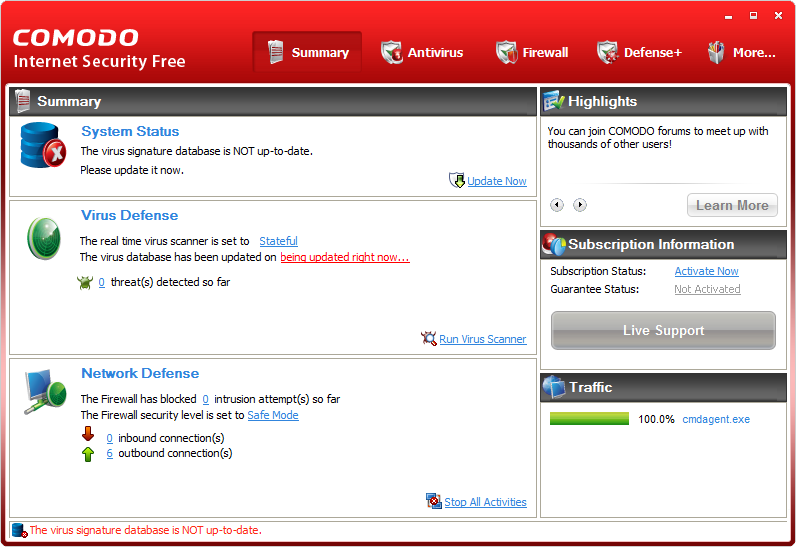
TIP: The option Stop All Activities in the summary blocks all internet activities immediately with one click.
ATTENTION: This version of Comodo is provided with sandbox technology where new programs are installed in a virtual environment to prevent them from making essential changes to the system. Although this could be a positive security tool, I prefer to disable this option (by the sub Defence+, button Sandbox, option Sandbox Settings) because it can cause problems (like not being able to save files to specific folders).
The Comodo Antivirus settings can be changed by the sub Antivirus in the main screen. Disable the Comodo virus scan software when virus scan software of another vendor is used. Real-time scanning is stopped by setting Scanner Settings to Disabled. The scheduled scan for viruses is disabled by the option Scheduled Scans, button Remove (use the button Edit to change the date and time of the scheduled scans).
Every process (e.g. a program or a service) which would like to use the internet connection are verfied by the Comodo firewall first to make sure they are allowed to connect. Contrary to previous Comodo versions, the firewall doesn't show no pop-ups (the shown pop-ups are generated bij Defence+), even when the firewall is set to Custom Policy Mode in stead of Safe Mode (available by right clicking the Comodo icon in the system tray, option Firewall Security Level).
Changing the Network Security Policy rules for the network/internet
traffic
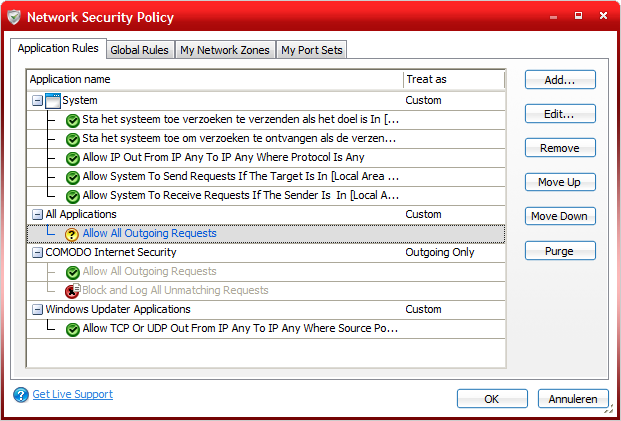
The window Network Security Policy (sub Firewall, button Advanced in the left task pane)
shows an overview of the processes for which security policy rules have been set
(manually with a pop-up or automatically). A security rule defines the network
and internet access rights of a certain process. If a process have been blocked or
allowed unjustly, then this
setting can be changed afterwards by changing the security policy rule: double
click the rule(s) shown below the row with the application (in the newly opened window Network Control Rule)
and change the combo box Action from Allow to Block or
Ask. The color of the little ball shown in front of the
security rule, will change from green to red.
According to the application rule for All Applications, all programs by default get access to the internet/network connection. If you rather have full control over the programs getting access to the internet/network, change the rule Allow All Outgoing Requests (below All Applications) by double clicking the rule and changing the action from Allow to Ask. When a proces is not stored in the database as a safe applications, a pop-up is shown to ask the user whether the program is allowed to gain access to the internet/network (the color of the pop-up is used as an advice: orange for a reliable application and red for an unknown or onsafe program). As soon as the program is answered, the security rule for the process is added. These rights can be changed by double clicking the security rule. Another option is to delete the complete application from the list, which forces Comodo (the next time the application uses the internet/network) to show a new pop-up.
TIP: If you are not sure if a program can be used safely, select the option Block without remembering the answer (disable the option Remember my answer). When the program doesn't work, restart the computer and answer the reshown pop-up with Allow.
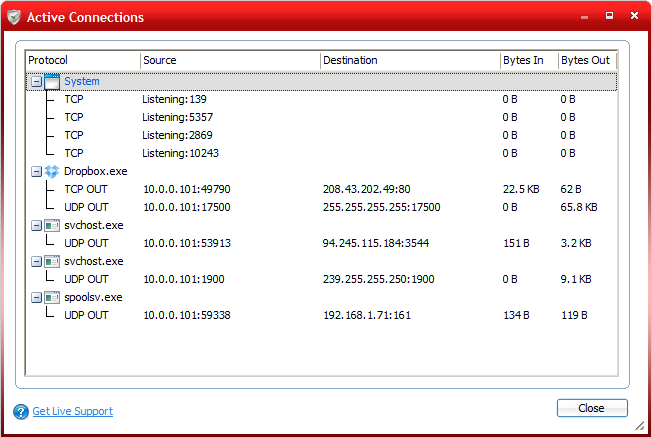
The window with the active connections (sub Firewall, button Common Tasks, option View Active Connections) shows an overview of the applications which are connected to the internet at that specific moment. It also shows the ports and protocols used by these applications. By default Comodo blocks al incoming traffic. This includes the ports which are necessary for some applications (like file sharing software). The firewall also blocks requests to browse the shared files by other computers in the network. The option View Firewall Events shows an overview of all blocked activities, which can be useful solving problems with the firewall.
The feature Defense+ protects the user from malicious software. Defense+ verifies the activities of all executable files and asks the user for permission (with a pop-up) in case of changes which have to be done to the system. This additional security feature lowers the chance malware makes undesired changes to the system. So, Defense+ does not secure the internet connection but the activities on the computer itself! Pop-ups are used to ask the user to allow the activities of any application. In case of a trusted (by the user) application select Allow and let the program remember your answer for this application. By doing this, the application will be added to the list of trusted application which will prevent the occurrence of new future pop-ups for this application.
Limit the number of pop-ups
The default Defense+ setting will result in many pop-ups, which can become
irritating. Multiple pop-ups for a single application is not uncommon.
In those cases, the user will quickly click them away without analyzing the
messages (which actually makes Defense+ useless). When all installed
applications are safe, select Clean PC Mode as Security Level
for Defense+ (this can be done by right clicking the Comodo shield in the system
tray). This setting will only verify the newly added applications which limits
the number of pop-ups.
Disable Defense+ when the frequently occurring pop-ups are irritating
If the number of pop-ups irritating, it is better to disable Defense+ by right
clicking the Comodo icon in the system tray and to select Disabled as
Defense+ Security Level.
This will not unload Defense+, it is only disabled! To safe system recourses,
disable Defense+ permanently in the sub Defense+ of the Comodo window,
button Advanced in the left task pane, option Defense+ Settings,
select the option
Deactivate the Defense+ permanently (Requires a system restart) and restart
the computer.
© 2001-2022 - Menno Schoone - SchoonePC - Rotterdam - The Netherlands