ZoneAlarm (download: www.zonealarm.com, select Download Basic Firewall) is one of the most free popular firewalls. ZoneAlarm can block or allow any application which tries to communicate with the network or the internet. If an unknown application would like to have access to the internet, you are asked to allow the access. This firewall is suitable for both Windows XP and Windows Vista and disables the Windows firewall automatically (see the Security Center).
While running the downloadtool for the free ZoneAlarm Firewall, the user is asked to install the 15-day trial version of the ZoneAlarm Internet Security Suite. Choose for the ZoneAlarm Free Firewall and continue downloading and installing ZoneAlarm. In the next window, the option for installing the toolbar ZoneAlarm Spy Blocker is already activated. When another toolbar is not needed, deactivate this option! By disabling the options for the registration and security news, the setup will proceed without typing an e-mail address. Agree with the license agreement, if needed let ZoneAlarm scan for known programs and reboot Windows when asked for.
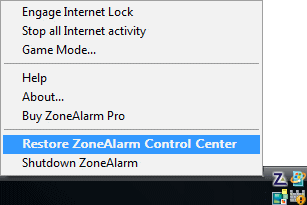
In the next step you will enter the ZoneAlarm Control Panel. If you missed it, you are also able to open ZoneAlarm with the icon in your system tray, as shown below: As you can see, you are able to Stop all Internet activity as well: your computer will be completely firewalled.
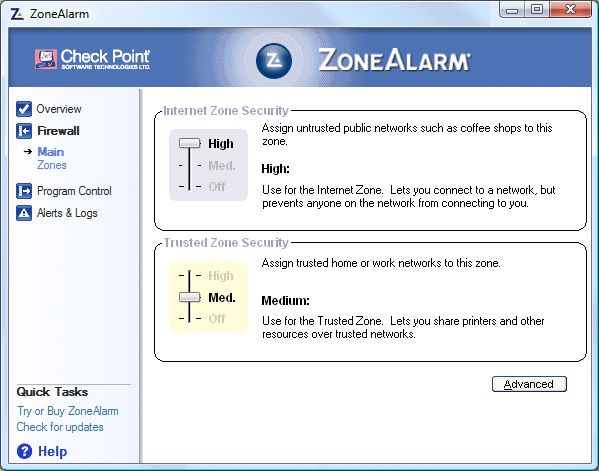
On the Firewall tab at the left side, tab Main, the settings are probably as below (Internet Zone Security is High and Trusted Zone Security is Medium. The security level for the Trusted Zone Security can be set to High when no files and printers are shared for other users on the network.
|
|
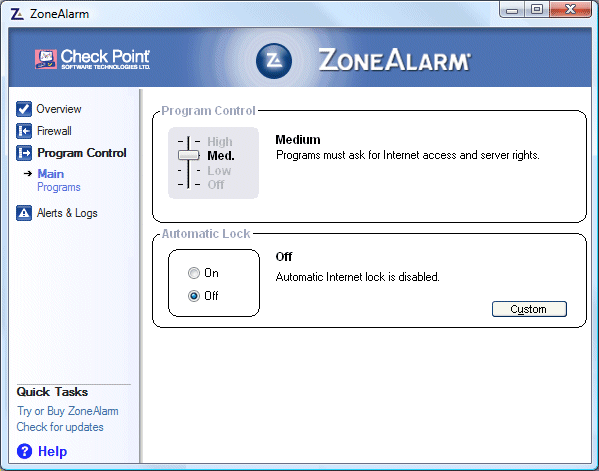
On the Program Control tab in the taskpane, you will probably now have the following screen:
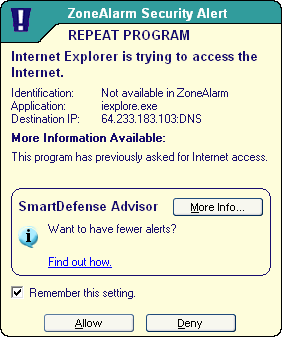
Every unknown program is asked for permission to enter the internet, as shown below. You will see this for multiple programs which would like to enter the internet. An unknown program needs to be confirmed twice, as shown below for the Internet Explorer (don't forget to enable the option Remember this setting, else you are continuously asked!).
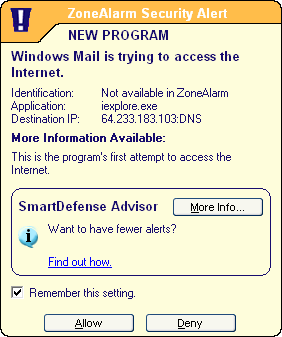
If you are not sure, don't allow the program to access the internet, you can always change it afterwards, if needed. All the allowed and denied programs are shown on the second subtab Programs of the Program Control tab at the left side.
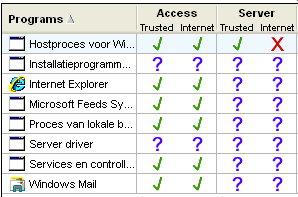
If you allowed a program to access the trusted zone and/or the internet the green mark is placed. If you blocked a program, the red cross is shown. If you made an error, you can correct it here!
© 2001-2022 - Menno Schoone - SchoonePC - Rotterdam - The Netherlands