Everybody knows how to print. However, on this page additional printing options are discussed, like creating a PDF file and creating a screen dump (a print of the shown screen). The tools HoverSnap, PDF995 and FinePrint will be discussed, probably they are useful in your own situation!
By using the PrtScr key (situated on the right side of the F12 key for most keyboards) you are able to create a screen dump of the current screen (use ALT-PrtScr to create a screen dump of the current Window). However, most users don't understand the use of this key because nothing happens after you press this key. The created screen dump can be used by pasting it (with the key combination CTRL-V) in your favorite picture editing software, an e-mail or just Word. By pasting the screen dump your are able to print it in many ways.
TIP: By pasting an error message into an e-mail message, a specialist can be informed in the best possible way. To achieve this, the e-mail layout should be HTML instead of plain text (HTML is the default layout in Outlook and Outlook Express). Using Outlook Express, it is not possible to past a screen dump into a message. This must be done by Insert, Picture followed by browsing to a saved file (in the next steps you are shown how to create a file of the created screen dump).
|
|
Creating a screen dump isn't that difficult anymore. However, it would be nice to store the image into a file. Of course, you can save the screen dump as part of a Word document, but this isn't one of the many standards for images. Unfortunately this option isn't provided by Windows XP but with the a tool like HoverSnap (download: www.hoverdesk.net/freeware.htm) you are able to save image files of a screen dump in multiple formats.
After the tool has been installed, you will see the HoverSnap icon in the system tray:
![]()
By right clicking on this icon, you are able to change the default settings:

The file format of the SnapShot screen dump can be chosen in the middle of the screen. The most important formats are JPG and GIF, which will be the extension of the file. The most common formats are GIF (for images up to a maximum of 256 colors) and JPG for pictures. The format GIF is not suitable for pictures because of the low number of colors. The format JPG is not suitable for simple images with a small amount of colors (storing in the format JPG will lower the quality and raise the file size. In most cases the format BMP is suitable, especially if the file will be edited later on. The formats GIF and JPG are the default file types for creating a website.
WINDOWS EXPLORER TIP: If you are not able to view the file extensions in the Windows Explorer, you can enable this option by Tools, Folder options, tab View and disabling the option Hide extensions for known file types. Disabling this option will show whether the extension of a file is GIF, BMP or JPG which makes it easier to indentify the filetype.
In the lower area of the screen you can change the default storage location (in this case D:\) and which default filename must be used (in this case screandump). Change these settings to find your future screen dumps easily.
As a reminder, this screen also shows the shortcuts to create a screen dump.
There are 3 options:
1) PrtScr-key: create a screen dump of the whole screen
2) PrtScr-key in combination with the ALT-key: create a screen
dump
of the active Windows
3) PrtScr-key in combination with the CTRL-key: create a screen
dump of a selected area
Especially this last option is valuable! By clicking the button Hide, the tool HoverSnap disappears into the system tray waiting for a printscreen job. By clicking the key combination CTRL-PrtScr the pointer of the mouse will change in a "+" sign. Click with left mouse button the upper left corner of the area to be selected, hold the mouse button and drag the mouse to the wished corner of the area. The screen dump will be created with the default name in the default folder with the chosen extension. Within the Windows Explorer you are able to change the filename and/or move the file as you wish. Below a screen dump in the format JPG of a selected area of the active desktop background to give an idea of the possibilities.

A few of the many advantages of creating a screen dump:
Besides printing to paper, printing can also be done to a PDF file which can be read by the free Adobe Reader (download: http://get.adobe.com/reader/). This tool can not be missed on your computer. The characteristics of a PDF file is the fixed layout as meant by the publisher (most manuals are available in PDF format). The additional advantage of offering a PDF file (instead of a Word document or other format) is the ability to secure the content of the document in a way it can not be changed by the reader. The PDF format is ideal for sending an application letter/CV, an invoice or another personel document which you don't want to be changed by the reader.
With the free tool PDFCreator (download: www.pdfforge.org/pdfcreator) as virtual printer you can easely create PDF files. When the Internet Explorer taskbar PDFCreator Toolbar is not needed, disable it at setup. After installing PDFCreator an additional (virtual) printer is added which can be used to print to a PDF file. If you have chosen PDFCreator, you will be asked for the file properties like the document title, creation/modify date, author, subject en as you wish some keywords (you are not obliged to fill them all). After pressing the button Save the wished storage location is asked for (the storage location of the previous printjob will be shown). If encryption is enabled, in the following screen will be asked for the password. The created PDF file can be found on the given storage location.
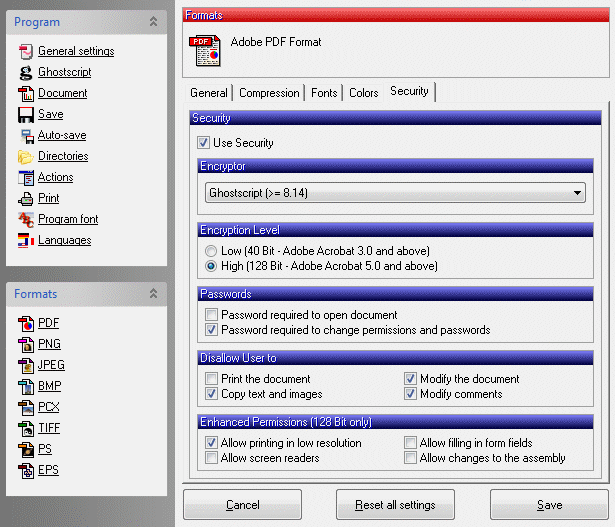
The default settings of PDFCreator can be changed easely. On the menuitem PDF, tab Security the PDF file can be secured. If you do so, you can give the user of the PDF file the rights to change or print the PDF file or to copy text to another program. On the menuitem Save you are able to change the default publisername.

TIP: PrimoPDF (download: www.primopdf.com) and PDF995 (download: www.pdf995.com/download.html) are similar tools which essentially work almost the same. You have to do some testing to find out which of them you prefer.
The tool FinePrint (download: www.fineprint.com/products/fineprint/index.html) makes it possible to print two pages (or more) pages on 1 A4. FinePrint installs as a virtual printer (like the above mentioned PDF printers). The setup requests to install FinePrint as the default printer: don't confirm this option because you probably don't want to use this tool in all situations. Multiple prints can be send to FinePrint (instead of your default printer) before the printjob is send to the actual printer with the button Print & Close. Unfortunately, the free version prints a message on every page which makes this tool only useful for personal usage. Nevertheless, this tool is very useful to print documents like manuals to save some money because of less paper and ink usage.
Home Preparing a reinstallation Windows XP Windows Vista Security Software Miscellaneous WWW