Partitioning a hard disk is the first thing to do before installing Windows. Partitioning a hard disk means dividing the hard disk in multiple partitions, which will occur as C, D, E, etc in your Windows Explorer. Most hard disks only have one partition, the C partition. This is not a practical situation because all personal data has been stored far away in the different sub-folders. The situation where the Windows system and the personal data are separated is preferred. Besides that, it's difficult to create an image of the Windows system.
RECOVERY PARTITIONSometimes your hard disk is provided with an extra recovery partition provided by the computer manufacturer (generally hidden). Never delete this partition, unless you know what you are doing! Ordering new recovery CD's takes a long time and most of the time they are not for free! The page about resizing the Windows partition in case there is a recovery partition describes how to start the recovery partition to install Windows on a newly partitioned hard disk. |
WARNING: By deleting a partition on a hard disk you will lose all data on that partition. If you are not sure what you are doing: make sure you have a backup of your important personal data! If needed, boot from a MS-DOS boot disk and backup the partition table information with MRESCUE.COM (MrBooter, see the multiboot page) or SAVEPART.EXE (Partition Saving, see the system imaging disk page).
|
|
Before you decide to partition your hard disk, you have to understand what type of partitions there are and when to use them. The most important partition is the primary partition. This partitions is normally used by an operating system, in our case the Windows XP system. The primary partition will normally be the partitions with an operating system, in our case the C partition. If you would like to create a mulitboot system, make sure you create multiple primary partitions.
In total you can only create 4 partitions on a hard disk, that's why you also have the possibility to create an extended partition. An extended partition can be divided in many logical drives, which makes it possible to have more then four virtual partitions. It's wise to create one primary partition for Windows and one extended partition and to split up the extended partition into different logical drives.
Furthermore you will have to choose between FAT32 and NTFS file system. The FAT32 file system is a bit faster and used by Windows 98/ME and MS-DOS boot disks. The NTFS file system has been introduced later and provides you with a more stable file system. The NTFS file system makes it possible to protect your files against other users. The NTFS partitions can normally not be accessed by Windows 98/ME or your MS-DOS boot disk. If needed, you can access the partition with aWindows based bootable CD like Bart's PE (XP based) or VistaPE (Vista based). For your Windows (C) and Data (D) partition use the NTFS file system. Because your system backup partition (E) must be accessible by MS-DOS, it will have to be FAT32!
HINT: Don't forget to read the registry tweaks for a faster NTFS file system within Windows XP!
EFS: ENCRYPTED FILE SYSTEMThe NTFS file system provides you with the possibility to encrypt your personal data (EFS, encrypted file system). You will only be able de decrypt and access your data with your own user account. Before you know, your files are no longer accessible (for example if your Windows system crashed because of a virus)! The encrypted file system is activated by right clicking a file, Properties, button Advanced, enable Encrypt contents to secure data. I advise to secure the EFS key, by exporting it through the Internet Explorer, Tools, Internet Options, tab Content, button Certificates, tab Personal. Store the key on a safe location which isn't encrypted itself ;-). Within Windows Vista Ultimate the tool BitLocker (in the Control Panel) is available to encrypt a whole partition. |
I prefer to use the C partition to install Windows and other software and to use the D partition for all personal data like My Documents, Music, Video's, but also your e-mail, Address Book, Favorites and downloaded files. Every user account in Windows XP/user account in Windows Vista gets his/here own folder, with his or here own personal files. Intuitive this seems to be a wise thing to do, reason enough to create at least 2 partitions: C (WINDOWS) and D (DATA).
If you decide to divide software and data, it gives you the opportunity to create (and restore!!) a Windows system image, without having the fear to lose data! The system image needs to be placed on a FAT32 partition, reason enough to create a third partition: E (BACKUP).
The easiest and fasted utility to create multiple partitions is Paragon Partition Manager (www.paragon-software.com/home/pm-personal), but it is also possible to use one of the bootable CD-ROM's, like the GParted Live CD or Parted Magic. They all have their own advantages and disadvantages, but work all with the same principle. However, none of these partition utilities are necessary: you can also use the Windows CD/DVD. At Windows setup you are asked which partition to install Windows on. At this moment you are able to delete the current partition(s) and create new ones immediately after deleting the Windows partition. Within Windows XP deleting partitions is done by pressing D (see the information bar). Within Windows Vista it is done with the option Drive options (advanced). Create a new partition, select the preferred size (see below) and the NTFS-file system (Windows XP).
If you have created your new Windows partition during the Windows setup, make sure the Windows partition is called C:! If this is NOT the case, quit the setup, rerun the setup and recreate your Windows partition. This will be the case when your CD or DVD player already has the C label because there wasn't any partition yet!
ALWAYS DELETE THE OLD PARTITIONS!It is also possible to fast format the old Windows XP partition (without having to repartition the hard disk), but strangely sometimes not all files are deleted. To be sure all files are gone, it is better to repartition! |
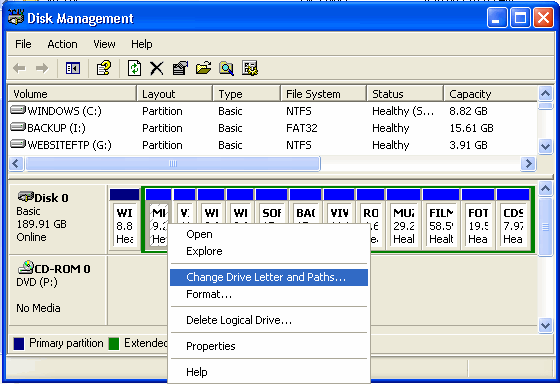
The other partitions can be created within Windows, using the Disk Management tool (Control Panel, Administrative Tools, Computer Management, Disk Management). For Windows Vista Disk Management, it is only possible to create an extended partition when there are already three primary partitions (create three small primary partitions and delete two of them later on to solve this issue). With this tool you are also able to give partitions and CD/DVD players another letter of the alphabet:
With a 200 Gb hard disk as an example, this will give the following partition setup: Partition D: is used for storing personal data and partition E: is used for creating a system image.
| Drive Letter |
XP |
Vista |
Label (file system) |
| 30 Gb | 50 Gb | Primary partition for the operating system: | |
| C | 30 Gb | 50 Gb | WINDOWS (NTFS) (XP at least 5-10 Gb, Vista at least 40-50 Gb) |
| 170 Gb | 150 Gb | Extended partition containing the following logical drives: | |
| D | 140 Gb | 120 Gb | DATA (NTFS) |
| E | 30 Gb | 30 Gb | BACK-UP (FAT32, at least 5-10 Gb) |
SYSTEM BACK-UP PARTITIONHere I have created a logical partition called BACKUP with a size of 30 Gb. A system image needs some 50-75% of the occupied sectors of your Windows partition, depending on used imaging software. An image of a general XP setting generates some 1 Gb of data files. To have the ability to create 3 different images (see the page about the system backup disk), you will at least need 5-10 Gb for the backup partition. |
If you are provided with only one partition and you don't want to start all over again (or you are not able to because the manufacturer didn't provide you with a installation CD-ROM but with a recovery partition/image), there is still hope! There is a possibility to decrease your current C partition in size, to be able to create more partitions. The answer: Paragon Partition Manager (www.paragon-software.com/home/pm-personal), the free GParted Live CD (download: http://gparted.sourceforge.net/livecd.php) or the free Parted Magic (download: http://partedmagic.com). With both partition managers you are able to resize a NTFS/FAT32 partition without deleting any files. Be careful: this can go terribly wrong: make sure you have a backup of your personal data!
Within Windows Vista one can resize the Windows partition with the tool Windows Disk Management (available by the sub Administrative Tools in the Control Panel, Computer Management). Right click the partition and select Extend Volume or Shrink Volume. Because Disk Management is not able to move files, the result is not always that cheerful. Although the procedure of resizing a partition is quite safe, it is wise to backup the personal files first. Be careful with alternative partitioning software: make sure they are compatible with the latest version of the NTFS file system!
The page resizing (shrinking) the Windows partition when there is a recovery partition describes how to shrink the Windows partition in case the Windows setup is only done by a recovery partition.
© 2001-2022 - Menno Schoone - SchoonePC - Rotterdam - The Netherlands