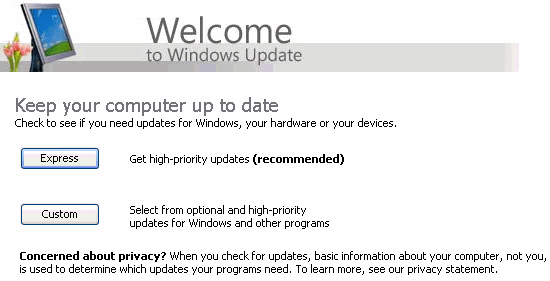
After you have installed Windows, the device drivers, a firewall and setup the internet connection, the first thing to do is updating the Windows software. Updating Windows is actually very easy, first you visit the Windows Update website: Start, All Programs, Windows Update. By visiting the Windows Update website, you will have two options:
It is very important to install all the critical updates. Without these critical updates, you have some important security issues, which need to be fixed as soon as possible. Install the critical updates before you visit other websites! On the Windows Update website, use one of the above options and install all the High priority updates. After you installed the high priority critical updates, restart Windows and visit the Windows Update website again.
These updates can be massive, especially if service pack 3 is not installed yet. When SP3 is available on CD-ROM, you can install it without installing SP1 or SP2 first. By the way, Windows XP is since SP2 provided with and auto update function for critical updates (the yellow shield in the system tray) and the Security Center (the red shield in the system tray). On the page how to optimize the Windows services, you can read how to disable the Security Center.
|
|
If all critical updates are installed, check the optional updates to enhance your Windows system. You will find updates for the Media Player, Outlook Express, DirectX .NET Framework and more. After you installed the optional Windows updates, reboot and check the Windows Update website again until all needed optional and all critical Windows Updates are installed!
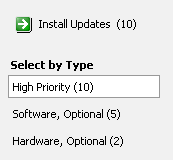
You are also able to download updated drivers for the hardware. Although Windows has many build-in device drivers, I prefer to install or update the device drivers with the most recent drivers from the manufacturer.
I have frequently seen, things going wrong (blue screen) after updating device drivers from the Windows update website. That's why you better install one device driver update at a time. If the new driver is giving a BSOD (Bleu Screen Of Death), boot in safe mode (press F8 at reboot), Control Panel, System, tab Hardware, button Device Manager, right click the updated hardware, select Properties, tab Driver, button Roll Back Driver.
Besides installing the Windows updates, you can choose to update all Microsoft products like MS-Office. Therefore, you go to the Windows Update page and choose for Microsoft-Updates in the menu bar. The update procedure is similar to Windows Update.
If you have just reinstalled Windows XP, it's wise to update directly with the latest available Service Pack. You can download (and install) the Service Pack files directly from the Windows Update site or download the Service Pack file first from the Microsoft download centre (www.microsoft.com/windowsxp/sp2/default.mspx). You can directly install the latest service pack, there is no need to install the previous service pack's!
If all updates are installed (or if you have troubles with the Windows Update
website), you can safely delete the files in the following folders:
C:\Windows\System32\Catroot2
C:\WINDOWS\SoftwareDistribution\Download
I can't imagine you would like to roll back the installed high priority Windows updates, especially if there are no problems. To delete the undo files, remove all the hidden folders starting with a "$" in the folder C:\WINDOWS (this can free a lot of hard disk space!) The folder $hf_mig$ is the only exception to this rule. It is advised to keep this folder as it is, although removing it doesn't result in problems. If you are still having Windows update problems, try to turn off and on the Windows update function (Control Panel, Automatic Updates).
NOTE: These files are hidden in the Windows Explorer! To unhide: Tools, Folder Options, tab View, enable Display the content of system folders, enable Show hidden files and folders, disable Hide extensions for known file types and disable Hide protected operating system files.
Problems with Windows Update are quite common: already installed updates keep coming back after a restart or Windows Update shows an error message and refuses to go on. Many of these problems can be solved easily by resetting Windows Update! This will delete the update installation files and the update history and restore the update function.
Resetting Windows Update
Before resetting Windows Update, it is necessary to stop the
service Windows update temporarily,
therefore right click this service and choose Stop. The next step is to
delete the (content of) folder C:\Windows\SoftwareDistribution (which
contain the update history and downloaded updates) using the Windows Explorer.
Although it is not necessary, this folder can be used as back-up by simply
renaming it to
SoftwareDistributionOrg (in stead of deleting the folder). After the
folder SoftwareDistribution has been renamed or deleted, the service
Windows update can be started again by right clicking it and to choose for
Start. By manually starting the search for updates, one can verify whether
the update function works properly now (if that is the case, the folder SoftwareDistributionOrg
can be deleted). If Microsoft Update was used before (for the automatic
installation of updates for all Microsoft products), then it has te be activated
again.
TIP: If resetting Windows Update didn't help, resetting the Internet Explorer settings might do the job (Tools, Internet Options, tab Advanced, button Reset). After resetting Internet Explorer it is necessary to change the set homepage and to change some settings. Check out the add-ons as well and make sure the add-ons you need are enabled (Tools, Manage add-ons).
If there are still troubles installing critical updates in spite of the above tips, you can disable the critical update. Double click the yellow shield for the critical updates and choose for the custom install. Disable the critical update which you don't want to be offered again (confirm in the next window). Automatic updates of the Control panel gives the option to show the hidden updates and install them as you wish (at the bottom of the window you will find the option Offer updates again that I've previously hidden).
With the new Windows Update software, all updates are stored in the folder C:\WINDOWS\SoftwareDistribution\Download. By copying these files to a safe location, you have a backup for a new Windows installation. This can save a lot of download time, especially if you have a slow internet connection.
NOTE: The files don't have an extension and the name doesn't make you happy as well. Add the extension .exe or .msi to get them working (you can rename to recognize them if you wish). The folder C:\WINDOWS\Downloaded Installations also contains downloaded software updates!
CREATE AN IMAGE OF YOUR SYSTEM FIRSTIn some circumstances, it can be wise to create an image of you current system first, especially if you suspect you will have problems with the Windows updates. If something goes into the 'blue', you are able to recover your Windows to the earlier situation. |
AUTOMATIC UPDATE WINDOWS MEDIA PLAYERDon't like the automatic Windows Media Player update? Start the registry editor, find the key HKEY_LOCAL_MACHINE\SOFTWARE\Microsoft\MediaPlayer\PlayerUpgrade and change the String Value AskMeAgain in no (instead of yes). |
© 2001-2022 - Menno Schoone - SchoonePC - Rotterdam - The Netherlands