
There are multiple webbrowsers (like Internet Explorer, Firefox, Chrome en Opera) available for browsing webpages. Microsoft's Internet Explorer is integrated in Windows and is therefore the most popular webbrowser. This page describes how to setup Internet Explorer and gives some solutions to common problems.
General settings
Internet Explorer is the default and most used internet browser in Windows. On
the tab General of the Internet Options
(available by the button Tools),
the preferred home page can be
changed to the one most frequently used (by default, this is the Microsoft
homepage). By adding additional URL's, the Internet Explorer can open multiple
web pages at once (each opened on it's own tab in the same window). The default
search engine (on the right side of the toolbar, the default search engine is
Bing) can be changed in the favorite
search engine (e.g. the more popular Google). New search engines are added with
the drop down menu next to the search field, option Changing Search
Defaults followed by the more difficult link to find:
Find more providers.
To change it to your favorite search engine, click the link Create your own
Search Provider and copy and paste the URL of a search
for the word TEST into the URL field (e.g.
http://www.google.nl/search?q=TEST for the Dutch version of Google), give
a description into the Name field
(e.g. Google NL) and click the button
Install Search Provider.
Internet Explorer is using tabs to view multiple web pages within the same window. A new tab is already available on the right side, but can also be created with the key combination CTRL-T. By activating the option Don't show this page again the first time the new tab opens (confirmed with the button Close), the next time a blank page will be shown. The ordering of the tabs can be changed by drag and drop. Browsing through the tabs can be done with the key combinations CTRL-TAB and CTRL-SHIFT-TAB. When the overview is lost, the first tab Quick Tabs at the left of the tabs (also available with the key combination CTRL-Q) shows an overview of al open tabs.
|
|
Settings for browsing with tabs
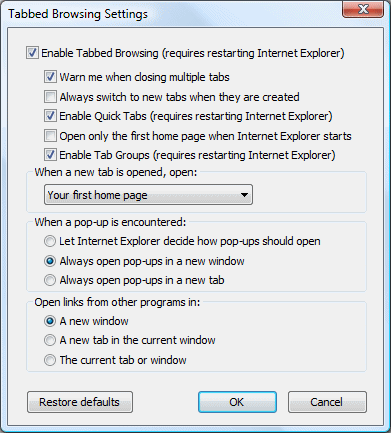
The settings for browsing with tabs can be personalized by Internet Options, tab General,
sub Tabs, button Settings. Activate the
option Warn me when closing multiple tabs to make sure not all tabs will
be closed at once without a warning with one click to close the Internet
Explorer window! If a search engine is used as home
page, this page can be the default page for every new tab by selecting Your
first home page in the combobox. The option Open links from other programs in a new window
makes sure that already open web pages are not overwritten when hyperlinks are
opened from another program.
IMPROVED SECURITY WITH THE PHISHING FILTERThe phishing filter in Internet Explorer checks all requested web pages at phishing for personal information (like telebanking information), before it is loaded in the browser. The phishing filter is also active in Windows Mail and the list of phishing web pages is updated frequently by Windows Update. |
UNHIDING THE MENU BARBy default Internet Explorer does not show the menu bar anymore,
but by pressing the ALT-key, it will popup. The menu bar will be visible
permanently by right clicking an empty area of a visible toolbar followed by
activating the option
Menu Bar. The menu bar is not
placed above the toolbars (like in earlier versions) but beneath the address bar.
To place the menu bar on its original top position, add the DWORD-value ITBar7Position
with the value
1 into the next registry key: |
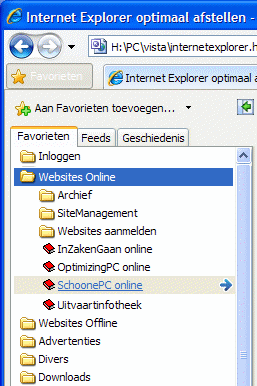
The Favorites Center (which is shown after clicking on the orange star at the top left of the taskbar) contains favorite internet pages, RSS-feeds and the browser history.
 Managing
favorits and changing the storage location
Managing
favorits and changing the storage location
From within the Favorits Center, sub Favorits (the button with
the orange star), the favorite webpages can be opend quickly. New
web pages can be added to the favorites with the second button (orange star with
a green plus-sign).
Bij default, the folder Favorits is stored on the location C:\Documents and Settings\inlognaam\ (XP) or C:\Gebruikers\inlognaam\ (Vista). If this location has to be changed (because it has to be moved to a data partition) then it can be done easily by using a cut (CTRL-X) and paste (CTRL-V) action within the Windows Explorer on the folder Favorits.
ATTENTION: Within Windows Vista, it is common that an error message is shown while adding a website to the favorites (or a feed to the RSS feeds). This is possibly caused by the limited permissions the user account has for the storage location, even if it's an administrator account. Visit the page about User Account Control and the administrator rights for more information about solving this problem.
Visit the page about moving the personal files to a data partition for more information and the problems which can occur.
 Managing RSS-feeds
and changing the storage location
Managing RSS-feeds
and changing the storage location
The
Favorite Center gives an overview of the stored RSS-feeds
(a RSS-feed keeps you up-to-date concerning the last changes on a specific
website). A webpage which offers one or more RSS-feeds, is recognized by the the
orange lighted icon on the toolbar. Subscribe on a RSS-feed is easy: click the RSS-icon
followed by the link Subscribe to this feed (the Favorite Center gives an
overview of the already added feeds). By default the RSS feeds are renewed
daily. In case a more intensive schedule is desired, update the frequency by Tools,
Internet Options, tab
Content, button
Settings
(sub
Feeds).
Changing the location to store the RSS feeds is not that easy: a symbolic link is needed to accomplish this (a symbolic link is a shortcut which forwards every request from the original location to the new location). Within Windows XP, the symbolic link can be created with the Sysinternals-tool Junction (download: http://technet.microsoft.com/en-us/sysinternals/bb896768.aspx). First move the folder C:\Documents and Settings\loginname\Local Settings\Application Data\Microsoft\Feeds to the desired location (e.g. D:\loginname\Feeds). The next step is to use the following Junction-command in the Command Prompt to create the symbolic link to the folder Feeds:
JUNCTION -s "%USERPROFILE%\Local Settings\Application Data\Microsoft\Feeds" "D:\loginname\Feeds"
Within Windows Vista, the storage location for the RSS feeds can be changed without using this tool: First move the folder C:\Users\loginname\AppData\Local\Microsoft\Feeds to the desired location (e.g. D:\loginname\Feeds). The next step is to create the symbolic link to that file on the original location, which is done with the following command (in the Command Prompt):
MKLINK /d "%LOCALAPPDATA%\Microsoft\Feeds" "D:\loginname\Feeds"
Visit the page about moving the personal files to a data partition for more information and the problems which can occur.
Deleting the temporary internet files (browser history)
Deleting the history of the
Internet Explorer is done most efficiently with the button Delete
(available with the button Tools, Internet Options, tab General,
sub Browser history). In Windows Vista, many temporary internet files (shown
by the button Settings, button View files)
are hidden, which means they can't be deleted by using the Windows Explorer.
Cleaning up the favorites
It is common that some of the saved favorite websites no longer exists, these
are the dead links. Sometimes the page has been replaced by to another address (where
the browser is forwarded to), in this case it is only a matter of replacing the
old address by the new one. Does the website no longer exists, then it is time
to remove the favorite from the list. However, manually searching for dead links
is time consuming. Fortunately the tool AM-DeadLink (download:
www.aignes.com/deadlink.htm; follow Options, Language to change the
language) can do this job for you, this tool checks automatically whether the saved favorites still exists. After
starting
AM-DeadLink, it shows immidiately the saved favorites. After clicking the
green button, all favorites are checked (or with the button with the apple, which also
download the
icons belonging to the favorite webpages)
AM-DeadLink shows the status of the links
(column Status). After double clicking a link, the website is preview in
the lower pane. This will show whether the (forwarded) favorite is still
relevant. Favorites which result in an error can be removed from the list with
the DEL-key or changed with the button Tools (part
of the preview pane), option Replace bookmarked URL by opened URL.
Problems printing a wegpage in Windows Vista
After a clean program has been used to delete temporary internet files, many
Windows Vista users are confronted with an error message when trying to print a
webpage while using Internet Explorer. The program shows the error message
Cannot find file: C:/Users/loginname/AppData/Local/Temp/Low/A1B2C3D4.htm
(the HTM-file and username vary) and refuses to print the webpage. This problem
is caused by the clean programs which delete the permissions to the folder
Low as well. To restore the permissions run the command below in the field
Start Search of the menu Start. Change loginname in the
name of the concerning user account and use the key combination
CTRL-SHIFT-ENTER to run the command with addition administrator permissions:
ICACLS C:\Users\loginname\AppData\Local\Temp\Low /setintegritylevel (OI)(CI)low
An error page is shown (in stead of the start page)
Does Internet Explorer 7 open with an error page in stead of the default
start page?
This problem can be caused when IE still has to go through the procedure for
applying the preferred settings. For some computers it is not possible to load
this page which makes it impossible to apply the preferred settings but the user
is still remembered every time IE starts to do so by showing an error page. This
problem is easily fixed by changing the DWORD
registry values RunOnceHasShown en RunOnceComplete into
the value 1. These values are stored in the registry key HKCU\Software\ Microsoft\Internet
Explorer\Main (create the DWORD values manually if needed).
This registry tweak forces Internet Explorer no longer to show the error page (the concerning settings can only be changed afterwards by using the option Tools). If you don't like to make changes to the registry yourself, the tool IE7 Runonce Remover (download: www.download.com/IE7-Runonce-Remover/3000-8022_4-10683012.html) can be used as alternative.
Changing the Internet Explorer title bar
Many computer manufactures change the Internet Explorer title bar, without
asking the user for approval. To change the title bar back to normal, by
deleting the string value Window Title in
the following registry key:
HKCU\Software\Microsoft\Internet Explorer\Main
Common solution for many IE problems
It frequently happens that Internet Explorer doesn't function properly
anymore. If the cause of the problems is not clear, try to reset the Internet
Explorer to its default settings (this is done by Tools,
Internet Options,
tab Advanced, button
Reset). Most problems are solved by this resetting of the Internet Explorer.
The only disadvantage is the resetting of the personal settings as well, like
the changing of the default home page.
In some cases some Add-ons need to be reactivated, for this reason it is
wise to verify the list of add-ons (by
Tools,
Managing add-ons)
Using the CTRL- and SHIFT-key
While holding down the
CTRL-key, using the scroll wheel of the mouse can be used to zoom in or out.
By holding down the CTRL-key and simultaneously clicking a hyperlink, the
clicked link will open in a new tab (clicking in combination with the
SHIFT-key will open a new window). While holding down the CTRL-key,
it is possible to open multiple web pages in different tabs within a short time,
because it doesn't activate the new tab after the link has been clicked.
If this is not the case, deactivate the option Always switch to new tabs
when they are created in the window Tabbed Browsing Settings (see
above). The use of the SHIFT-key is very useful quick visit to a webpage
and to close the opened window afterwards and return to the webpage the link was
clicked on.
Faster browsing the internet by increasint the number of simultaneous
downloads
By default there is a maximum of two simultaneous downloads. With a fast
broadband connection, browsing the internet can be speeded up by changing this
maximum. To change the maximum, add the DWORD-values with the names MaxConnectionsPer1_0Server
and MaxConnectionsPerServer and change the decimal value to 16 (or 32 in
case of a very fast internet connection) in the following registry key:
HKCU\ Software\ Microsoft\Windows\CurrentVersion\Internet Settings
Faster browsing the internet by replacing the HOSTS-file
The (video) adds shown on web pages are becoming bigger and bigger in file
size and slow down the speed of browsing the internet. Because the
website and the adds are downloaded from different servers, it is possible to
block the adds by blocking the add servers. This saves a lot of bandwidth, which
will result in faster browsing. The most simple way to achieve this, is by
replacing the HOSTS file! By placing the web servers with malware into the HOSTS
file as well, it will prevent the user from downloading malicious software
available from those websites. Visit the page about
replacing the HOSTS file for more information about this subject.
© 2001-2022 - Menno Schoone - SchoonePC - Rotterdam - The Netherlands