Before you reinstall your Windows, it's important to backup important personal data and analyze system information. First of all, you probably would like to save your My Documents folder, containing your personal files. The folder Favorites (containing your important IE websites), the folders containing your E-mail and Address book and probably some save-games can be of great value to you. But there is more! On this page you will find out what's wise to backup and how to do it.
TIP: Some files mentioned here are system files and/or hidden, so make sure you can see those type of files in the Windows Explorer (Tools, Folder Options, tab View, enable Display the content of system folders, enable Show hidden files and folders, disable Hide extensions for known file types and disable Hide protected operating system files).
BACKUP DEVICESThere are many backup devices which can be used, like CD-R/RW DVD-R/RW, USB-stick, e-mail, external hard disk or another computer in your network. Before reinstalling Windows, make sure you are able to read your backup. |
CRASHED OR INFECTED WINDOWSIf your Windows is infected by a virus, most times it is still possible to boot in safe mode (press F8 at boot). If your Windows has been crashed, but the hard disk is still accessible, you can try to backup your important files by placing the hard disk as slave in another computer. Other options are booting from a CD, like Bart's PE, VistaPE (support for external hard disks and USB sticks) or Ultimate Boot CD. It takes some time to create those bootable CD's but it's worth the effort. |
|
|
Windows has a tool available for transferring the Windows settings and files from one computer to another. This tool is called Files and Settings Transfer Wizard in Windows XP and Windows Easy Transfer in Windows Vista and both are available in the Start Menu, All Programs, Accessories, System Tools. The tool Windows Easy Transfer (download: www.microsoft.com) can be used within Windows XP for a transfer from Windows XP to Windows Vista. Remember that transferring settings can also import current problems. These tools are not suitable for back-up purposes of essential data because they store all data in a single file while a file by file back-up is preferred!
TIP: The Files and Settings Transfer Wizard and Windows Easy Transfer can be used to transfer the settings (and files) quickly from one user account to another.
The folder with the program settings (XP: C:\Documents and Settings, Vista: C:\Users) contains interesting subfolders, one of them is the folder All Users (with the general settings for every user) and the sub folders of the user accounts (with the specific settings for a single user). To make a backup, copy those folders to a safe location with the Windows Explorer. Because some user specific files are occupied by some processes at the moment the user account is active, those files can only be copied from a new user account with administrator privileges. Before copying the folder, empty the temporary folders Temp and Temporary Internet Files (in the Local Settings folder) because it is waste of time making a backup of them.
Backup of registry settings
Many settings are saved in the
registry,
which can be exported to a registry file (and import them on a new system), but
only when you know where to find them. Exporting registry values in multiple
registry keys has the disadvantage that existing problems will be imported to
the new system as well. For this reason it is better to rebuild the registry
from scratch.
Back-up Internet Explorer favorites
Don't forget to backup your Internet Explorer
Favorites folder: C:\Documents and Settings\user account\Favorites
(XP) and C:\Users\loginname\Favorites (Vista). To make a
backup of the Favorites folder is easy: just copy it with the Windows
Explorer to a safe location (by moving it, the registered storage location is
changed as well!). If you prefer to save the current order of the
Favorites as well (by default it is alphabetical), save the following
registry key and import it
directly after restoring the favorites (this only works correctly if the restored
favorites are exactly the same as before):
HKCU\Software\Microsoft\Windows\CurrentVersion\Explorer\MenuOrder\Favorites
Back-up RSS feeds
The RSS feeds of Internet Explorer are stored on the location C:\Documents
and Settings\loginname\Local Settings\Application Data\Microsoft\Feeds
for Windows XP and
C:\Users\loginname\AppData\Local\Microsoft\Feeds for Windows Vista.
The folder with RSS feeds can be copied with the Windows Explorer to a safe
location (Outlook 2007 stores the RSS feeds in the OUTLOOK.PST file).
Back-up favorite registry locations
Frequently used registry keys in the
registry editor can be saved as
favorites as well. To back-up these favorites export the registry key
HKCU\Software\Microsoft\Windows\CurrentVersion\Applets\Regedit\Favorites to
a save location.
Back-up virtualization folder (Windows Vista)
For security reasons, Windows Vista virtualizes program files (the files are
stored on a different location then the program intents to, by virtualizing the
files on that location). For example, the files in the folder C:\Program Files
are virtualized for each user in the personal folder C:\Users\loginname\AppData\Local\VirtualStore\Program
Files. This folder possibly contains valuable files, like the folder with
music and video files of the file sharing software eMule. If there are important
files in the virtual store, save them by copying the folder to a safe location
with the Windows Explorer. Visit the page about the
Windows Vista compatibility issues for more information about the
VirtualStore.
Back-up the manual additions to the MS Office dictionary
While using the spelling and grammar check, new words can be added to the
dictionary. Those additions are saved in the file CUSTOM.DIC (the XP
location is C:\Documents and Settings\loginname\Application
Data\Microsoft\Proof\ and the Vista location is C:\Users\loginname\AppData\Roaming\Microsoft\Proof\).
By saving this file and restoring it to the same location after the
reinstallation of Windows, the manually added words to the dictionary can be
saved. The storage location can be changed in MS Word by Tools, Options, tab
Spelling & Grammar,
button Custom Dictionaries.
To make changes to the manually saved words, edit the CUSTOM.DIC file
with a simple text editor like
Notepad.
DIGITAL RIGHTS MANAGEMENT (DRM) MEDIA PLAYERIf you have bought media files with the Windows Media Player, there is reason to worry about the Digital Rights Management (DRM). There is no way to secure the licenses. After Windows is reinstalled you have to contact the shop (if it is still there...) where you bought the media and re-download the digital rights. In the older version of the Windows Media Player you were able to save and restore them with Tools, License Management, select the location and click the button Back Up Now (restoring them is similar). Fortunately, you can find tools on the internet which are able to save the DRM information. |
If you are using an e-mail client like Outlook Express (XP), Windows Mail (Vista), Windows Live Mail (as replacement of OE or WM) or Outlook, you probably like to restore your e-mail (inbox and sent items, address book) and e-mail account settings to your reinstalled Windows. Most data can be saved (exported) within the e-mail application and restored (imported) on a new system. However, it is safer, easier and faster to copy the database files to a safe location with the Windows Explorer. For most e-mail application, the storage location is mentioned somewhere in the program settings:
BACKUP MOZILLA FIREFOX AND THUNDERBIRD DATAWhen Firefox is your favorite browser and/or Thunderbird your favorite mail client, the tool MozBackup (download: http://mozbackup.jasnapaka.com) will be useful to back-up the settings, favorites, mail database, mail accounts, passwords and browser extensions of these Mozilla tools. The tool MBX2EML (download: http://luethje.eu/prog/) can be used to convert the Thunderbird database with e-mail to another e-mail program. This tool converts the e-mail to EML-files which can be imported easily by almost any e-mail program. |
Outlook Express
By default Outlook Express stores the e-mail database in the folder C:\Documents and Settings\user
account\Local Settings\Application Data\Identities\{...}\Microsoft\Outlook Express\
This folder contains files with the extension DBX, make a backup of these files by
copying them to a safe location. After you
reinstalled Windows you can restore them to the same location (overwrite the new
created DBX files). I rather advise to store the database on a different partition and use the
Outlook Express settings (Tools, Options, tab
Maintenance, button Store Folder) to change the
database location. This is important if you would like to
create a system image. It is also
possible to export the database within Outlook Express (File, Export).
TIP: Be careful when you are placing back the e-mail database, there is a risk of loosing your data. Never work with your original files, always have a backup available!
By default the Windows Address Book (used by Outlook Express) is stored in the C:\Documents and Settings\user account\Application Data\Microsoft\Address Book\ folder. The Address Book folder contains a file with the extension WAB (double click this file to view the content). By copying this folder or file to your backup location, you will have a backup of the Address Book. If you can't find the WAB file, you can use the utility Outlook Express Tweaker (download: www.qwhale.com). This tool is very useful to change the default Address Book location to another partition.
TIP: If you are using more then one e-mail identity within the same user account, you have to backup multiple database folders.
SAVING THE OUTLOOK EXPRESS (BLOCKING) RULESOutlook Express offers the possibility to make rules for blocking senders for
the incoming e-mail (Message, Block Sender).
These rules are saved in the registry on the following location: To backup the blocking rules is done by exporting this key to a REG file within the registry editor (File, Export). Importing these blocking rules is easy: double click on the created REG file. But before you do this on a new user account/system, the code between { and } have to be changed to the new code using a simple text editor. It's also possible to export the created rules (Message, Create Rules From
Message) by exporting the following key: |
Windows Mail (Windows Vista)
By default, Windows Mail
stores the e-mail database in the folder C:\Users\loginname\AppData\Local\Microsoft\Windows Mail.
There is no single database file, the e-mail are stored separately as EML
files in the
sub folder Local Folders. To create a backup of the folder Windows Mail, copy it to a safe location. After you
reinstalled Windows you can restore them to the same location (first delete the
folder of the new, empty database). I rather advise to store the database on a different partition and use the
Windows Mail settings (Tools, Options, tab
Maintenance, button Store Folder) to change the
database location. This is important if you would like to
create a system image. It is also
possible to export the database within
Windows Mail (File, Export).
TIP: Be careful when you are placing back the e-mail database, there is a risk of loosing your data. Never work with your original files, always have a backup available!
By default, Windows Mail stores the contacts in the folder C:\Users\loginname\Contacts\. To backup the contact, copy this folder to a safe location.
SAVING THE WINDOWS MAIL (BLOCKING) RULES
Windows Mail
offers the possibility to make rules for blocking senders for
the incoming e-mail (Message, Junk E-mail, Add Sender to Blocked Senders List).
These rules are saved in the registry on the following location: To backup the blocking rules is done by exporting this key to a REG file within the registry editor (File, Export). Importing these blocking rules is easy: double click on the created REG file. But before you do this on a new user account/system, the code between { and } have to be changed to the new code using a simple text editor. It's also possible to export the created rules (Message, Create Rules From
Message) by exporting the following key: |
Windows Calendar (Windows Vista)
Windows Calendar stores the calendar by default in the file
C:\Users\loginname\AppData\Local\Microsoft\Windows Calendar\Calendars\loginname's
Celendar.ics. By simply copying this file to the back-up
location, it can be restored later on.
Windows Live Mail (Windows Live)
By default,
Windows Live Mail
stores the e-mail, contacts and RSS feeds in the folder
Windows Live Mail. Within Windows XP, this folder is stored on the
location C:\Documents and Settings\loginname\Local Settings\Application
Data\Microsoft\ and within Windows Vista the location C:\Users\loginname\AppData\Local\Microsoft\
is used. There is not one single database file, all e-mail, contact or RSS feed
is stored in a separate file. To create a backup of the folder Windows Live Mail, copy it to a safe location. After you
reinstalled Windows you can restore them to the same location (first delete the
folder of the new, empty database). I rather advise to store the database on a different partition and use the
Windows Live Mail settings (Tools, Options, tab
Maintenance, button Store Folder) to change the
database location. This is important if you would like to
create a system image. It is also
possible to export the database within
Windows Mail (ALT key, File, Export).
Outlook (MS Office suite)
By default Outlook stores all e-mail,
contacts, agenda and notes in
the OUTLOOK.PST file. The default location where this file is stored is
C:\Documents and Settings\user
account\Application Data\Microsoft\Outlook\ for Windows XP and C:\Users\loginname\AppData\Local\Microsoft\Outlook
for Windows Vista. The file OUTLOOK.PST can be found quickly with the
Windows search function: Start,
Search (make sure the Windows Explorer shows the hidden and system files). By copying this PST file to your backup location, you will have a
backup of your Outlook data. Before you copy the file to a safe location,
close Outlook to prevent any errors (make sure the process OUTLOOK.EXE is
closed using the Task Manager (CTRL-SHIFT-ESC), tab
Processes).
After you reinstalled Windows and Outlook you can restore the file to the same location (first delete or rename the newly created database). I rather advise to store the database on a different partition and let Outlook point to this location (this is important if you would like to create a system image). Changing the storage location of Outlook is easy: move the file with the Windows Explorer (make a copy as well, you never know...) and start Outlook. Outlook will show an error: redirect Outlook to the new location, restart Outlook and the problem is solved.
TIP: If the option AutoArchive is enabled (enabled by default, Tools, Options, tab Other, button AutoArchive), save the archive file as well. This window shows the storage location of the ARCHIVE.PST file. With the Windows Explorer, this file can be copied to a safe location. It is also possible to save the AutoComplete List with the typed e-mail addresses, to restore them on a new user account of different computer. Close Outlook and copy the Outlook.NK2 file to a safe location. For Windows XP this file is stored in the folder C:\Documents and Settings\loginname\Application Data\Microsoft\Outlook, for Windows Vista this file is stored in the folder C:\Users\loginname\AppData\Roaming\Microsoft\Outlook.
Write down the e-mail account settings (Tools, Accounts), you need them after you reinstalled your Windows. Make sure you write down the following information:
In the mentioned e-mail applications (Outlook excluded), the e-mail account settings can be saved (password included) by exporting them separately to an IAF file (Tools, Accounts, button Export and restored later on with the button Import). Be careful with these IAF-files, they contain your passwords! This procedure is not possible in Outlook (Tools, E-mail Accounts, View or change existing e-mail accounts). The e-mail account settings can only be written down or printed (use the PrtScr key to make screen dump and paste it in Word) to recreate them after reinstalling Windows and Outlook. The accounts can be saved from the registry as well, but restoring them is not always error free.
Besides the e-mail account settings, you might also save your dial up settings (Network Connections (XP)/Network Center (Vista) in the Control Panel). If you have any, check the different properties settings of your dial up connection (check the different tab settings). Also check the network settings, if used. Sometimes you need to provide the connection with TCP/IP settings if there is no DHCP server.
Have you forgotten your passwords from e-mail, dial-up, Live or even visited websites? No problem: with the right tools, you can recover them from the Windows protected storage.
ATTENTION: Many scan software warn for a virus because they are very powerful tools. See the alert as a warning, these tools are virus free!
The NirSoft password recovery tools
The best password recovery tools are available on the NirSoft
website (download:
www.nirsoft.net)! Here you
find password recovery tools for your favorite e-mail client (Mail PassView),
messenger application (MessenPass), dial up connection (Dialupass),
secured wireless connection (WirelessKeyView) or even the passwords of visited websites (IE
PassView). Run those utilities and print your screen with a PrintScreen
key (paste it with CTRL-V in Word or image application). You will be surprised what information you will find!
Recover FTP passwords
SniffPass (download:
www.nirsoft.net/utils/password_sniffer.html) can be used to recover the FTP password to upload your website. After you have used this
tool, it will be
clear to you that your e-mail and ftp passwords are transferred openly over the
internet!
Recover passwords for Word or Excel
Forgot the password of a Word- or Excel-document? No problem for Free Word/Excel Password Recovery Software
(download:
www.freewordexcelpassword.com). Finding the password takes some time, but
this tool will find the password. Removing a forgotten password of an
Excel-spreadsheet can be done with Excel Password Remover (download:
www.straxx.com/excel/password.html). This tool only removes the editing
protection of an Excel-file or -sheet.
Recover the Windows and Office product key
Not really a password, but important enough if you don't have it anymore: the
Windows and Office installation keys. You can recover them with utility
ProduKey
(download:
www.nirsoft.net/utils/product_cd_key_viewer.html). LicenseCrawler
(download:
www.klinzmann.name/licensecrawler.htm) is is even able to find the product
keys of many other programs (like Nero, PowerDVD, Adobe....)! With the tool RockXP
(download: www.rockxp.org)
you are able to view the installation keys as well, but you are also able to
change them! Changing the installation key can be useful if you have bought a
legal version but don't want to reinstall the old illegal version.
Some other password recovery tools
A very extensive tool is Cain & Abel (download:
www.oxid.it/cain.html):
with this password recovery tool almost everything is possible! Did you forget the administrator password? Check the
Bootable CD section. The tool CmosPwd
(download:
www.cgsecurity.org/wiki/CmosPwd) makes it possible to recover the BIOS
passwords of almost all motherboards.
While using Windows Live Messenger a lot of emoticons, winks and background images are stored on your computer. The free tool ConCon Retriever (download: http://concon.110mb.com) can backup these items and restore them easily on your new Windows installation.
Before you reinstall your Windows, there is one more thing you should do: check your device drivers and save them to your backup location. These saved drivers can be very useful when there are still some question marks in the Device Manager (especially those drivers for the ethernet adapter to get access to the internet). Backup those hardware drivers by following one or more of the following steps:
ATTENITON: Do NOT start with the reinstall of Windows before you have (saved) the drivers of your modem and/or network adapter (whatever you use to make a connection to the internet) else you are not able to download them if you need to. For more information about how to install the hardware drivers, visit the pages Windows XP device drivers and the Windows Vista device drivers.
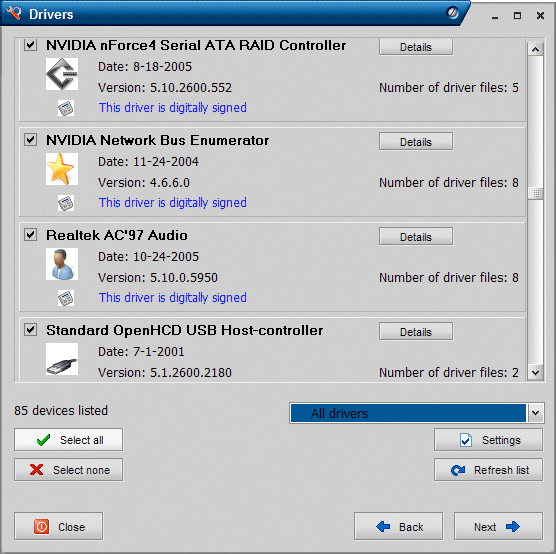
How to create a backup of the installed hardware drivers with DriverMax
Start DriverMax, agree with the 30 day test period, click the button
Continue evaluation and choose for Drivers operation in the next
screen, followed by the option Export drivers. By clicking the button
Next, DriverMax shows an overview of all installed hardware and the
matching drivers. The button Select all selects all hardware/drivers at
once which can be saved by clicking the button Next (before saving them,
disable the unneeded drives). The next step is to navigate to a suitable folder
to store the drivers.
The files in this folder can be very useful to install the drivers of unknown devices, which appear in the Device Manager after a reinstallation of Windows. When new hardware is detected, navigate the wizard to this folder to select and install the drivers of the unknown devices. When these drivers are stored on a CD-R, the drivers are easily found by the Device Manager when needed! If needed, the drivers can be restored from DriverMax (after reinstalling the software) with the option Import drivers as well.
DOWNLOAD A FIREWALLBefore you go on, it's wise to download a software firewall first. If Windows XP SP1 (and older) is installed and you enter the internet without a firewall, there is a big chance you get infected within 1 minute. It's a bit strange: you need to go online for the necessary Windows security updates but if you go online without security you probably get infected! Because of this reason, Windows Service Pack 2 enables the Windows firewall by default. Of course you can rely on the build in XP firewall, but make sure you turn it on before you connect your network cable (if you don't have SP2 yet)! I prefer to install the Comodo Firewall. |
RAID OR SATA HARD DISKIf you are provided with SATA (serial ATA) hard disk and a RAID controller (instead of IDE hard disks): make sure you have the drivers on floppy or CD-ROM. You will need those to find your hard disk during the install of Windows. You need to press F6 at Windows setup, to load these drivers. By default, many RAID controllers are supported by Windows Vista. Just by trying, you will find out whether yours is supported as well. If the hard disk is not recognized by the setup then the drives have to be loaded manually at that specific time. |
CHECK YOUR HARDDISK HEALTH WITH SMARTMake sure your hard disk is error free, before reinstalling Windows. Most BIOS versions have the option to enable SMART monitoring (by default disabled most times). The S.M.A.R.T. option makes it possible to monitor the health of your hard disk. When a hard disk crash is near, this option informs you which gives you time to save your personal data and replace the hard disk. If possible: always enable this option! If you can't find SMART in your BIOS, you can also use HDD Health (download: www.panterasoft.com). |
© 2001-2022 - Menno Schoone - SchoonePC - Rotterdam - The Netherlands